
Real Audio
Newer PC's on our network cant get outside our network so they have to use the proxy server. Im not sure exactly where you find the realplayer on a pc, but I'm sure its in a menu somewhere under the start menu.
Settings
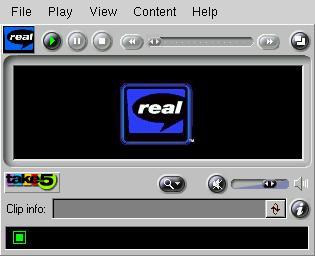
- From the menu View
- select the preferences menu option
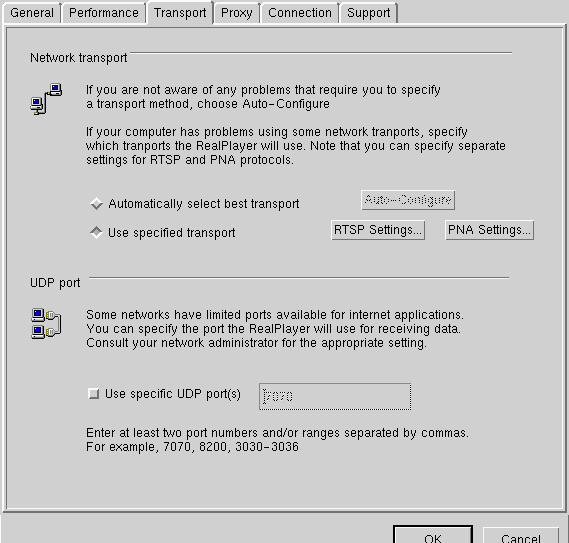
- select the transport tab
- in network transport
- click the use specified transport option
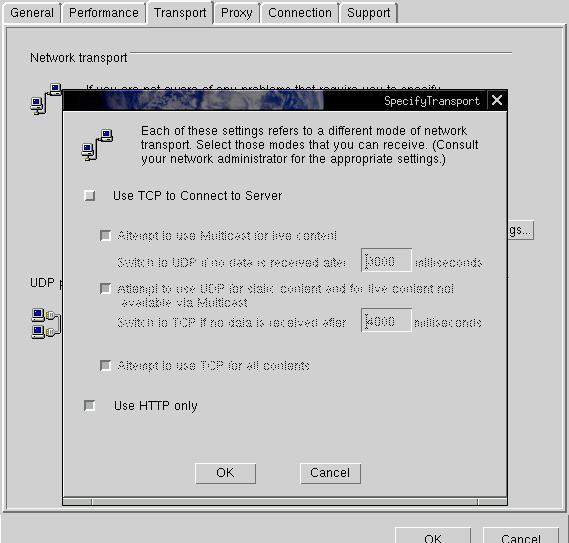
- click the RTSP settings... button
- click the Use HTTP only option
- click the PNA settings... button
- click the Use HTTP only option
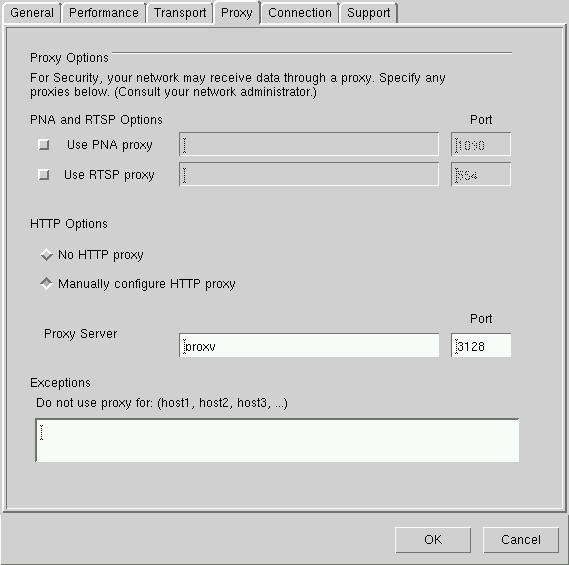
- select the Proxy tab
- in HTTP options
- click the Manually configure HTTP proxy option
- enter proxy as the Proxy Server
- enter 3128 as the Port
Background
This was submitted as a problem via our helpdesk software and the document for the solution is included below.http://www.squid-cache.org/Doc/FAQ/FAQ-7.html in 7.4 How can I proxy/cache Real Audio? says:
- Point the RealPlayer at your Squid server's HTTP port (e.g. host proxy.earth.monash.edu.au port 3128).
- Using the Preferences->Transport tab, select Use specified transports and with the Specified Transports button, select use HTTP Only.
Use HTTP Only....
     Select this option if you are behind a firewall and cannot
     receive data through TCP. All data will be streamed through
     HTTP.

     Note: You may not be able to receive some content if you
     select this option.
This works for me.
solved in this request
